


Your own Mac, in your own hand — from anywhere.
WARPHOLE. is a remote desktop app for iPhone and iPad. It wakes your Mac and lets you operate it with a full Mac keyboard, trackpad gestures and touch. It reaches only the Macs you have paired yourself, and every session is end-to-end encrypted.
In development by LOVE rhetoric for release on the App Store. Not yet available.
 Designed and developed by LOVE rhetoric

What it does
Operate your Mac as if you were sitting in front of it.
WARPHOLE. is made for one person reaching their own Mac: the Mac on your desk, controlled from the iPhone in your pocket or the iPad on your lap. A companion menu bar app runs on the Mac.
Wake and connect
Open the app and it connects to the Mac you used last. If the Mac is asleep, WARPHOLE. asks it to wake — in seconds on the same network, or within about three minutes from elsewhere. No router configuration is needed.
A real Mac keyboard
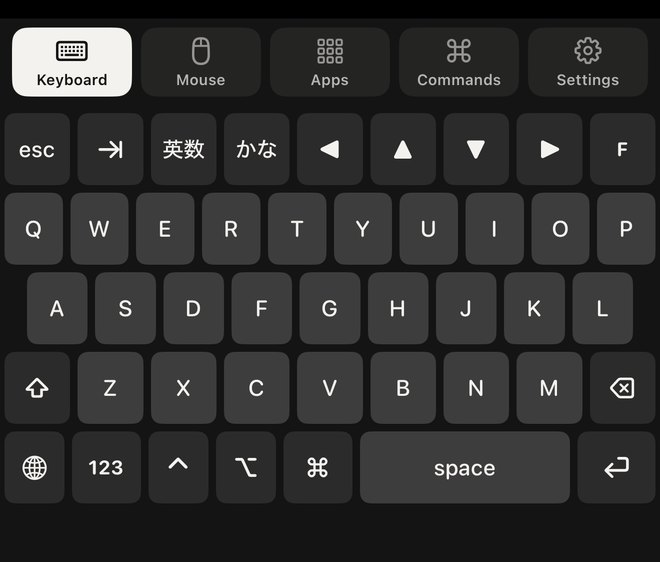
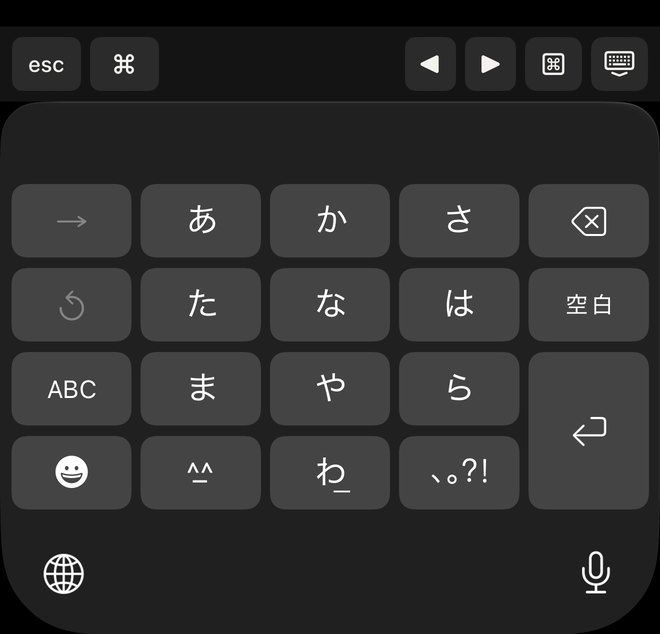
⌘ ⌥ ⌃ ⇧ and fn behave like physical keys, so you can hold ⌘ and press Tab. Function keys, arrows, media keys and a JIS/US Mac layout are included, and text — including Japanese — goes straight into the field on your Mac.
Trackpad gestures
Tap to click, two-finger tap to right-click, two-finger scroll with inertia, drag, pinch to zoom the view, and three-finger swipes for Mission Control, App Exposé and switching Spaces.
Unlock with Face ID
When your Mac is locked, one button enters your Mac password after Face ID or Touch ID on your iPhone or iPad. The password is kept only on that device and cannot be read without biometric authentication.
Shared clipboard
Copy on your iPhone and paste on your Mac with ⌘V, or the other way round. Text and images up to 16 MB. Items that password managers mark as concealed are never sent.
Apps and commands
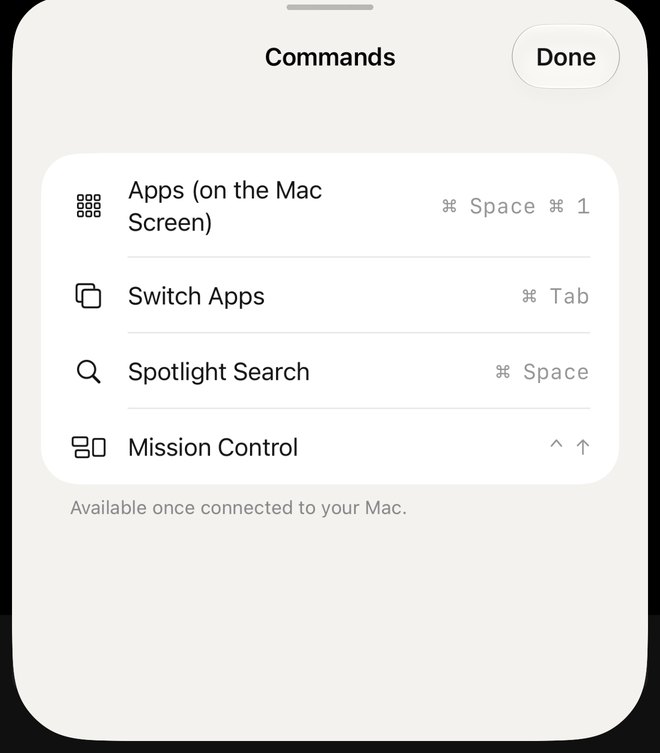
Open any app in your Mac’s Applications folders, and send ⌘Tab, Spotlight, Mission Control, Force Quit, screenshots, volume and brightness from a command list you arrange yourself.
Screens
The real app, as it runs today.
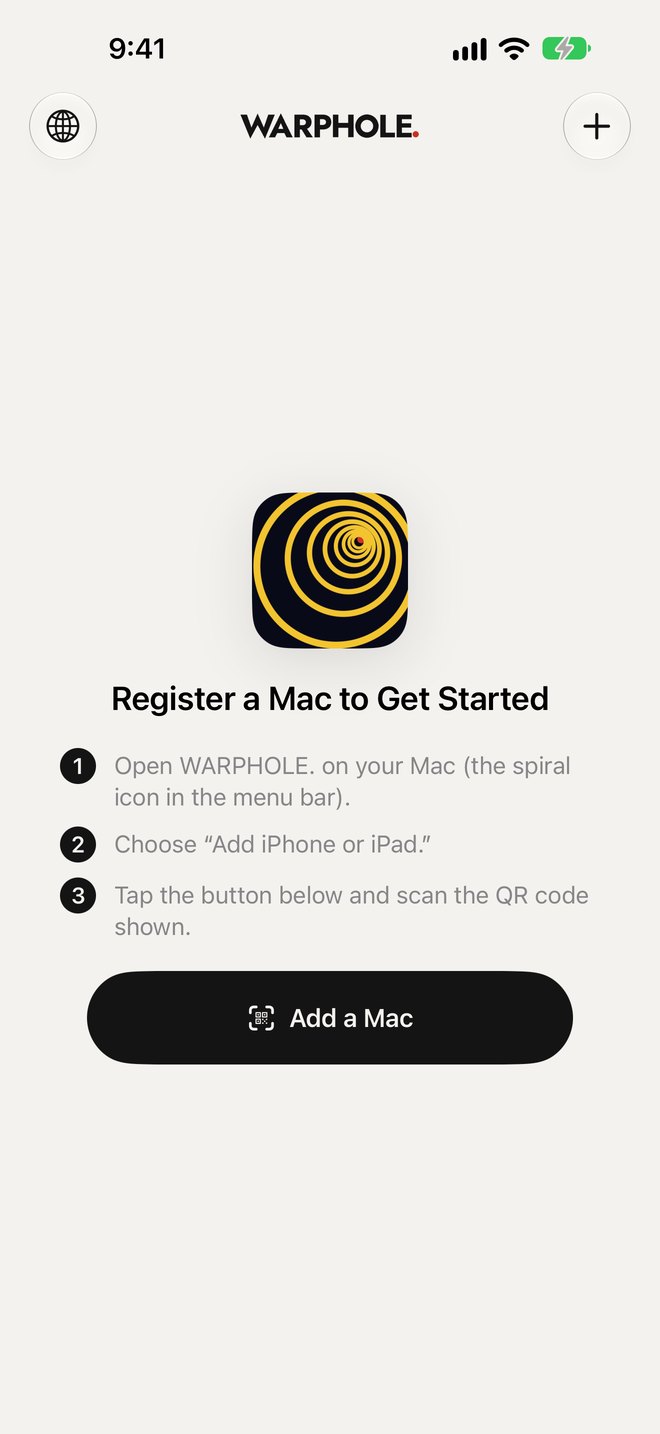
Captured from WARPHOLE. running in the iOS Simulator (iPhone 18 Pro Max). The simulator is not paired with any Mac, so the area where your Mac’s screen appears is cropped out; the controls are exactly as they appear on a device.
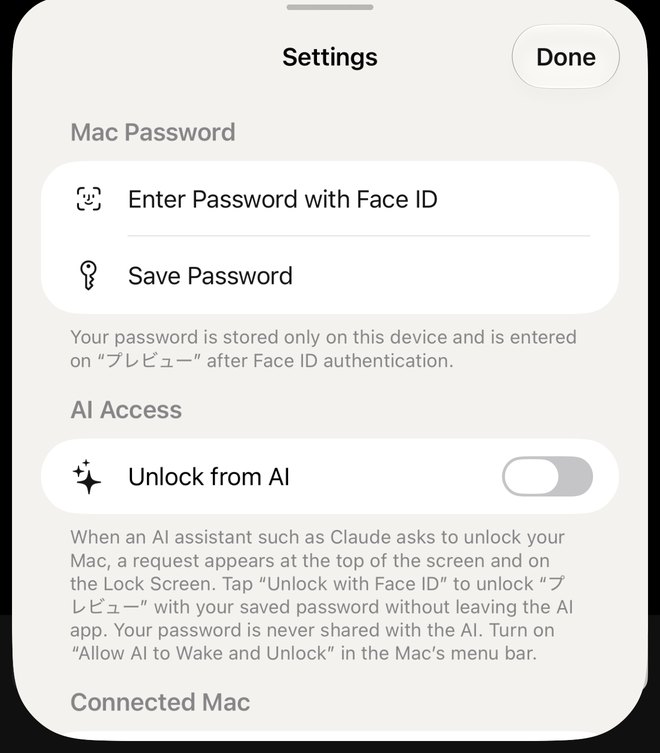
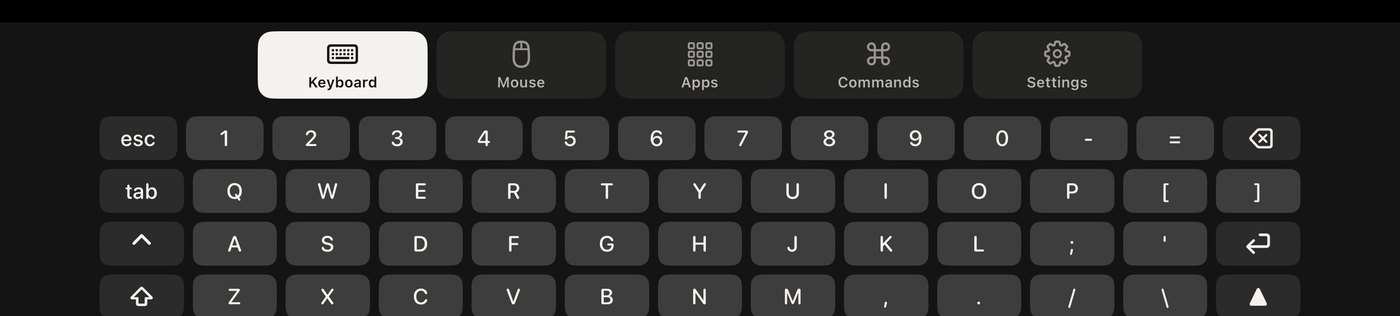
On the Mac
The menu bar app that accepts your devices
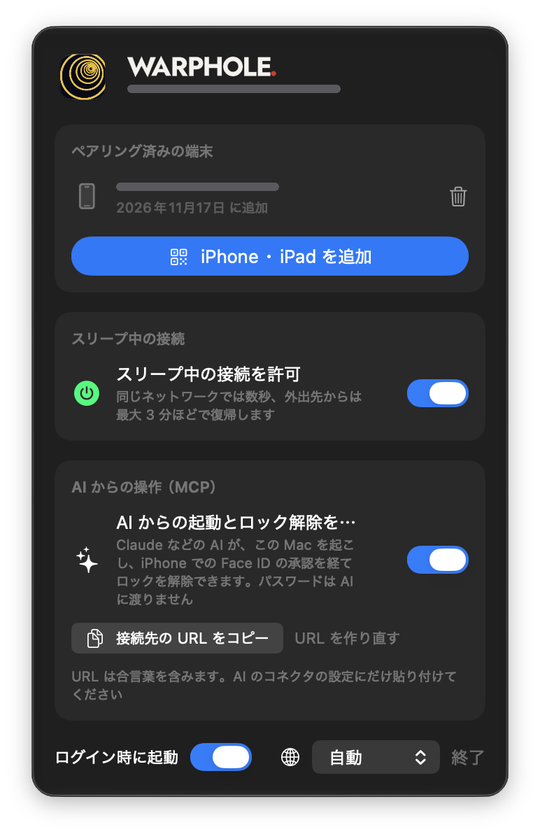
The Mac side of WARPHOLE. lives in the menu bar. From here you pair a new iPhone or iPad with a one-time QR code, remove a device, allow connections while the Mac sleeps, and turn AI access on or off — or create a new connector URL at any time.
Captured on the developer’s Mac running WARPHOLE. (Japanese UI). The paired device’s name is masked.
How it connects
Only between devices you paired yourself.
There is no account and no sign-in. A Mac and an iPhone or iPad trust each other only after you scan a one-time QR code with your own hands.
Key kept in the Secure Enclave
Carries short, signed messages so the two devices can find each other
Accepts paired devices only
- Pairing with a one-time QR codeThe Mac shows a QR code containing its public key and a one-time secret that expires in 5 minutes. The iPhone proves it holds the secret and registers its own public key. The secret is never used again.
- Every message is signedMessages between the devices are signed with P-256 keys and checked for recipient, time and replay. The relay forwards messages only from devices on the list your Mac has signed.
- No man in the middleThe fingerprint of the encryption key for the video and input connection is included in the signed messages, so neither the relay nor any intermediary can impersonate a device or read the session.
Security
Built so that losing control of it is hard.
Unlocking always needs you
Your Mac is unlocked only after Face ID or Touch ID on your own iPhone or iPad. Your Mac password never leaves that device except to be typed into your Mac over the encrypted connection, and the Mac discards it right after typing.
Keys that cannot be copied
Private keys are created in the Secure Enclave of the iPhone, iPad and Mac and never leave it. (Only on a Mac without a Secure Enclave is the key kept in the Keychain instead.)
Secrets stay on the Mac
The secret in the optional AI connector URL is generated on your Mac and stored only there; the relay keeps just its SHA-256 hash. It can be regenerated or turned off from the menu bar at any time.
AI can ask, not act
The optional AI connector (MCP) offers exactly three tools: check status, wake the Mac, and request an unlock. It cannot type, click or see the screen, and an unlock still requires your approval with Face ID on your iPhone.
Power settings restored
To stay reachable, the Mac is kept awake only while on AC power. When it switches to battery, or the app quits, the normal power settings come back.
Limited permissions
The Mac app asks for Screen Recording (to send the screen) and Accessibility (to reproduce your keys and pointer). Waking from sleep uses an optional helper that you install with your administrator password and can remove from the menu bar.
Input modes
Three ways to touch your Mac.
WARPHOLE. detects the Mac you are connected to and offers the two modes that fit it. Switch between them from the control bar.
Mouse mode
The whole screen becomes a trackpad. Move with one finger, tap to click, tap with two fingers to right-click, scroll with two fingers, and press and hold to drag.
Touch mode
Touch a point on your Mac’s screen to click it directly. Press and hold to right-click, and move while touching to drag.
PROLED Touch mode
For Macs with a built-in touchscreen display. Offered automatically when the Mac reports a built-in HID touchscreen digitizer and the captured display is the built-in one.
About PROLED Touch mode and the HID Virtual Device entitlement
The goal of PROLED Touch mode is that a finger on your iPhone arrives on your Mac exactly like a finger on the Mac’s own touchscreen — as native touch input. To do this, the WARPHOLE. Mac app (com.loverhetoric.erectup.mac) needs to create a virtual touchscreen with CoreHID’s HIDVirtualDevice, which requires Apple’s com.apple.developer.hid.virtual.device entitlement. We have applied for it.
- The app creates exactly one virtual touchscreen digitizer (usage page
0x0D, usage0x04). - It exists only while a paired iPhone or iPad is connected in a session, and is removed when the session ends.
- It carries only the touches of that paired device. Connections from unpaired devices are refused before any input is accepted.
- Until the entitlement is granted, PROLED Touch mode reproduces touches with standard mouse events, as Touch mode does today.
Requirements
What you need.
| iPhone and iPad | iOS / iPadOS 17 or later. Portrait and landscape on both. Face ID or Touch ID to unlock the Mac. Unlock requests from AI use Live Activities (iOS 17.2 or later). |
|---|---|
| Mac | macOS 15 or later, with the WARPHOLE. menu bar app. Screen Recording and Accessibility permissions. |
| Network | An internet connection on both sides. Home Wi-Fi and mobile networks (including 5G) are supported; on mobile networks the video is sent at a lower resolution and bit rate. |
| Waking from sleep | Optional helper installed with an administrator password. On the same network, a sleep proxy such as Apple TV or HomePod lets the Mac wake within seconds. |
| Languages | Japanese and English, on all devices. |
Developer
Made by LOVE rhetoric.
- Developer
- LOVE rhetoric (independent developer, Japan)
- Product
- WARPHOLE. for iPhone, iPad and Mac
- Contact
- wordsworth0903icloud.com
- Policies
- Privacy Policy · Support